 Photography Colleges
AI Eye Color Changer
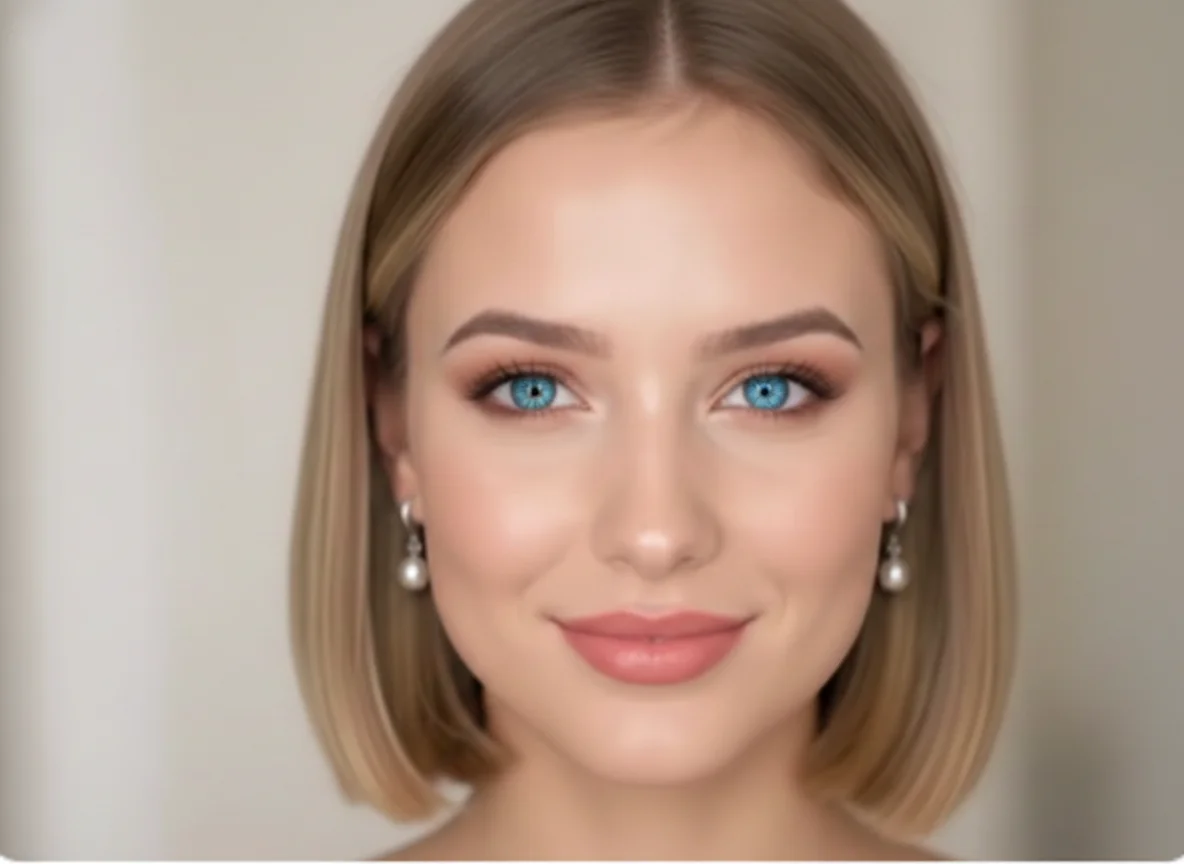
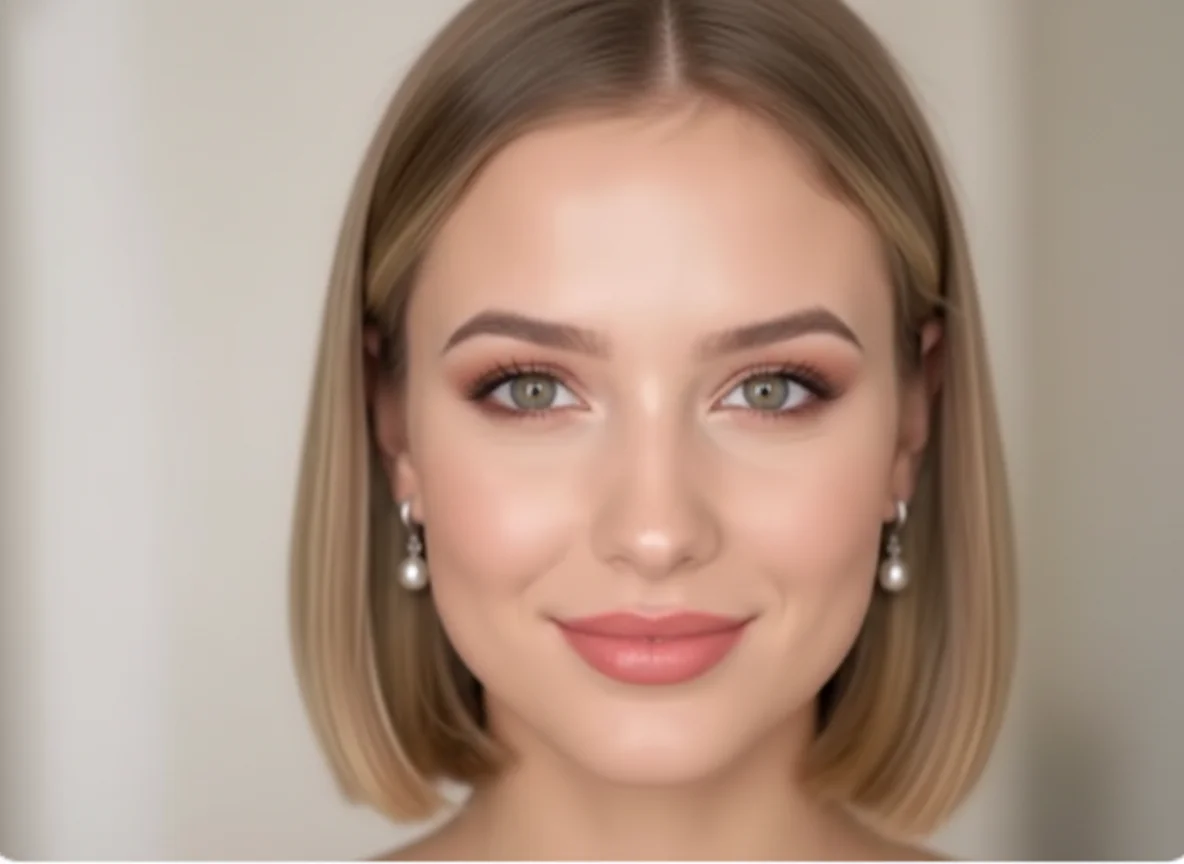
Best Examples
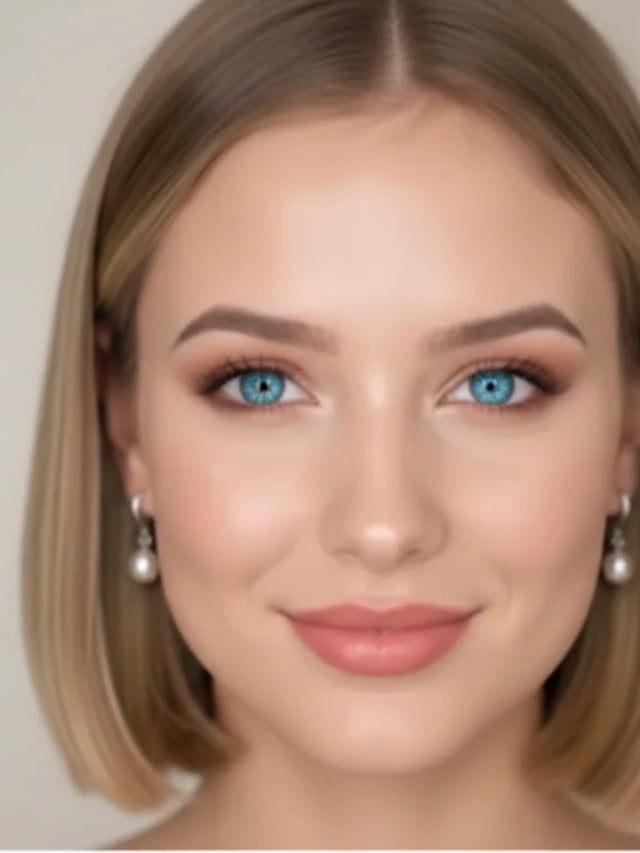
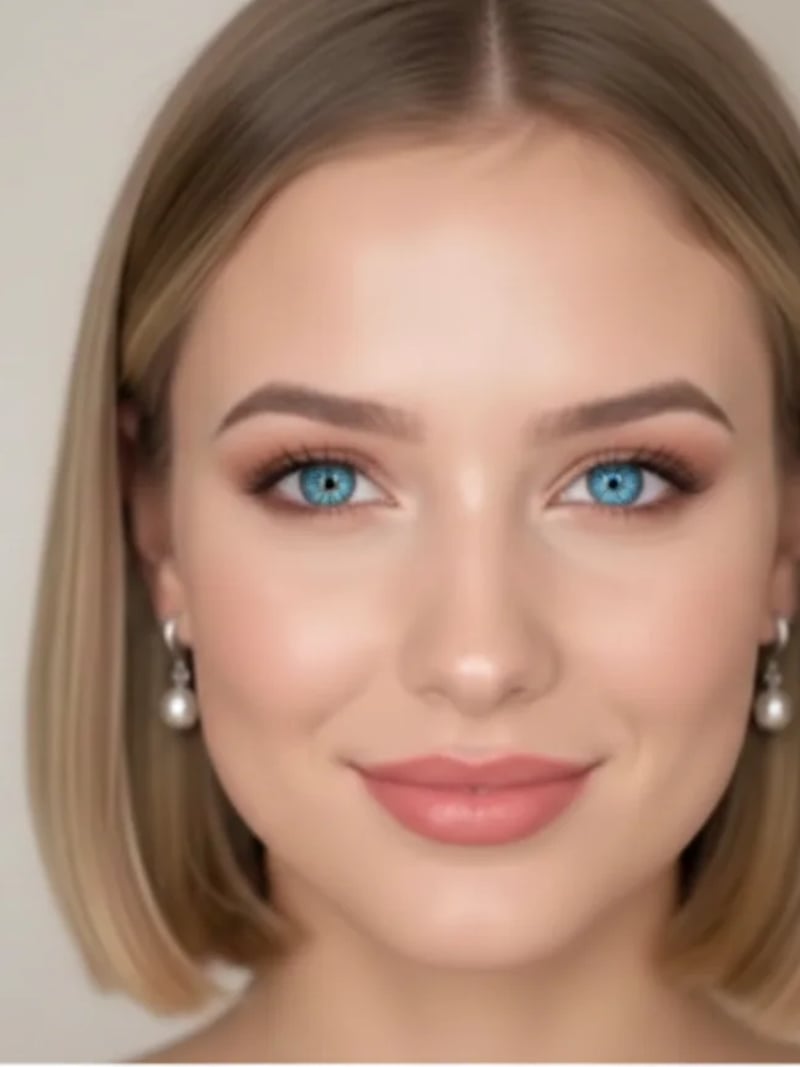
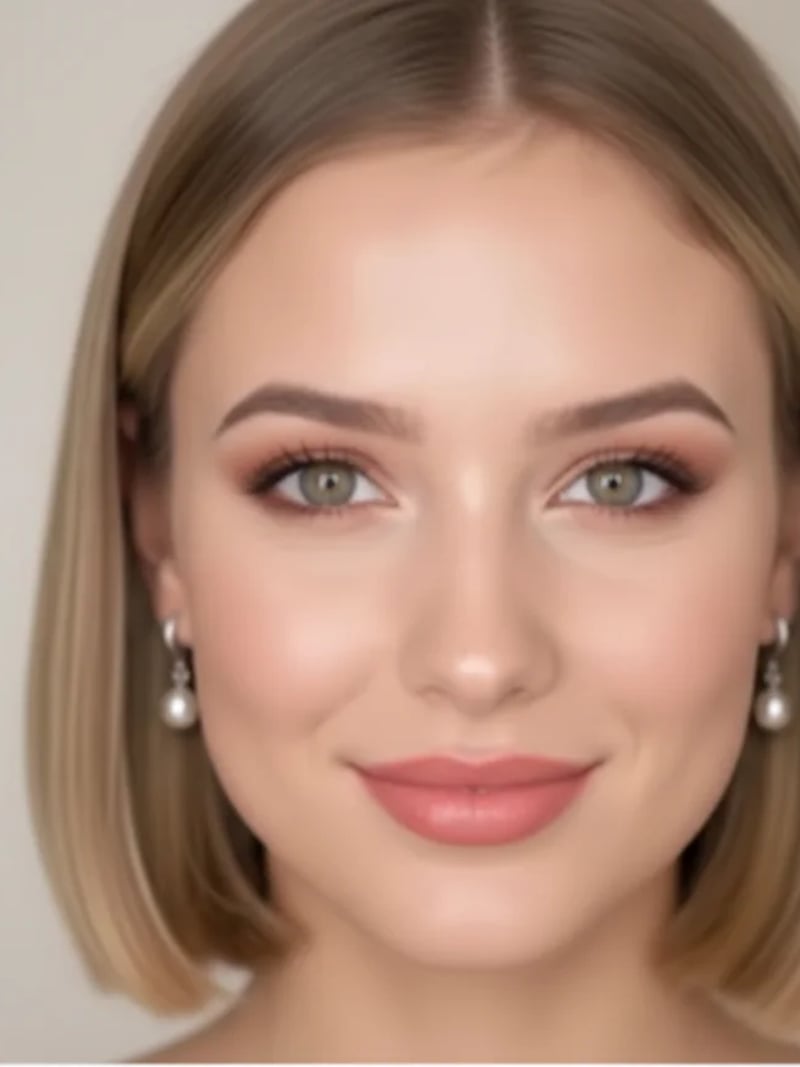
AI Eye Color Changer — Change Eye Color in Any Photo
Use the AI eye color changer to swap eye color in any portrait. Pick blue, green, hazel, gray, amber or violet and keep the face untouched. Free to try.
The AI eye color changer recolors the irises in your photo while the rest of the picture stays exactly as you shot it. Upload a portrait, choose blue, green, brown, hazel, gray, amber or violet, and the model rebuilds the iris with its own shading, catchlights and edge detail. Your face, expression, hair, pose, background and lighting are left untouched, so the new eye color reads as part of the original frame.
It is built for anyone who wants to change eye color in photos without a lens fitting or a layer mask. Shoppers preview a colored contact shade on their own eyes first. Cosplayers push into violet or amber for a character look. Photographers and creators test two or three options on a headshot before choosing one. No editing experience is needed, and nothing installs on your computer.
Manual retouching means selecting each iris, painting on a hue layer, then fighting the highlights until the eye stops looking flat. The AI eye color changer does that work for you in seconds and returns up to four variations of your chosen shade at once. You compare them side by side, download the one you like, and keep the original photo untouched.
How the AI eye color changer works on your photo
Start with a close-up where both eyes are clearly visible and in focus. The model reads the shape of each iris, the pupil edge, the reflections from your light source and the shadow cast by the lid. It then rebuilds the iris in the shade you picked, rather than dropping a colored circle over the eye. That is why the result still looks like a photograph rather than a filter.
Everything outside the iris is preserved. Eyelashes, the whites of the eye, skin texture, makeup, hair and the background come back the way you uploaded them. Because the edit is contained, you can use the result next to untouched frames from the same shoot and the set will still look consistent.
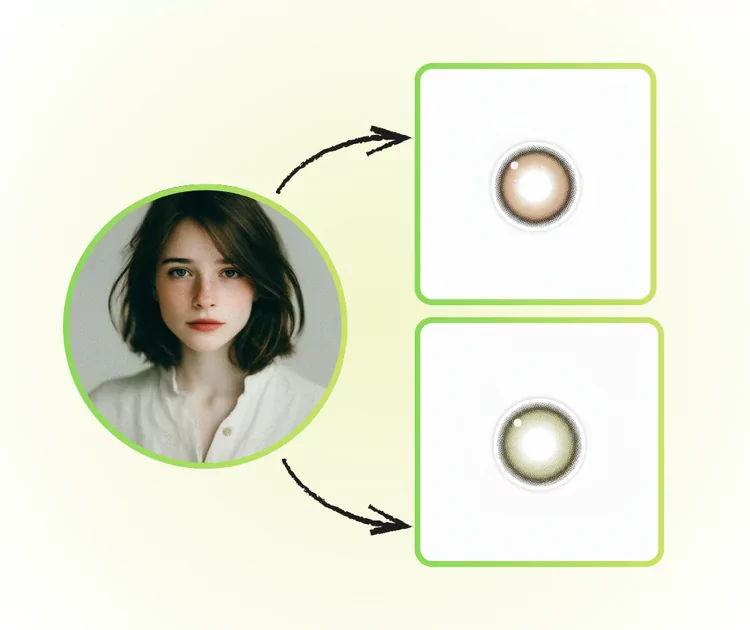
Realistic results on any eye color and skin tone
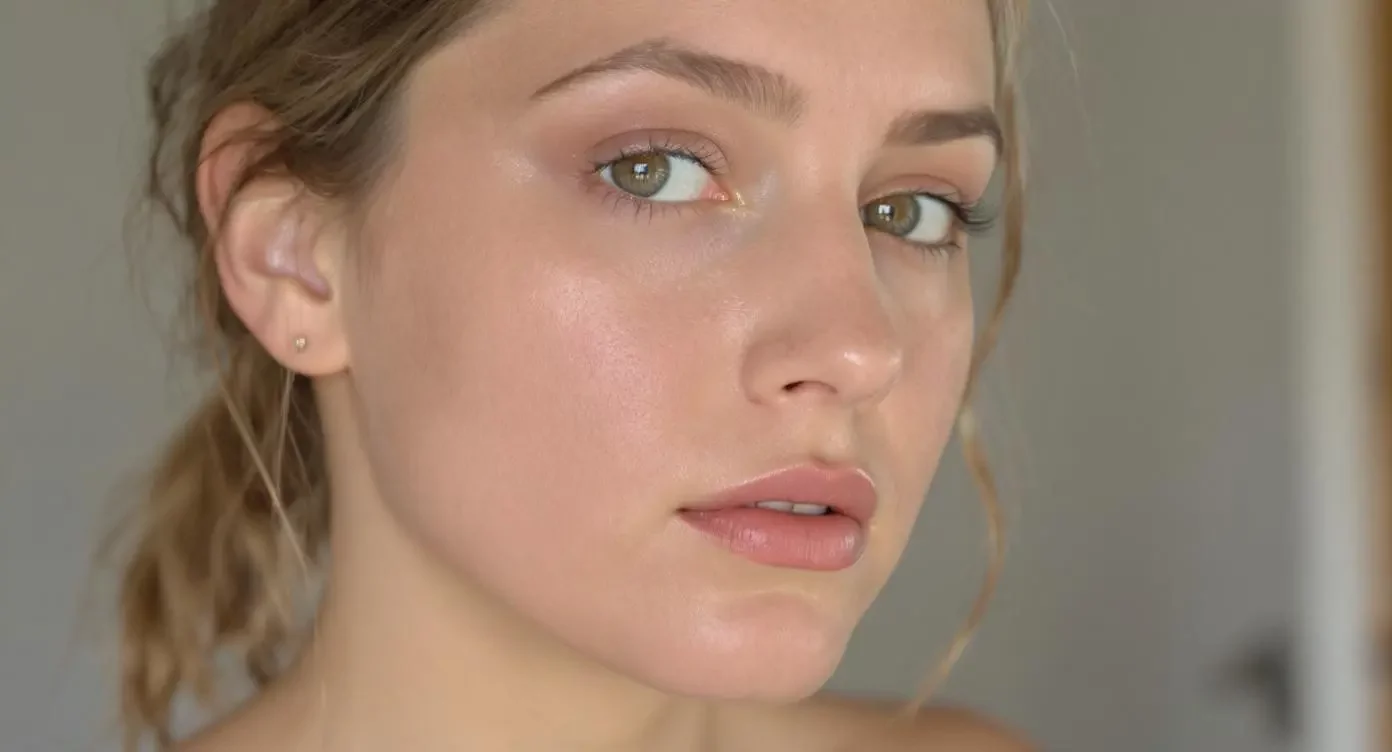
Dark brown eyes are the hardest case, and they are the one most people ask about. A flat overlay on a dark iris turns muddy or plastic. Here the original iris pattern is used as structure and the new shade is built through it. A brown eye can move to gray or blue and still hold depth from the pupil to the outer ring.
The shade also has to sit correctly against the rest of the face. Warm indoor light, cool daylight and mixed lighting all change how a color reads, so the recolor follows the light already in your photo instead of forcing one fixed hue. Amber stays warm on warm skin. Gray stays cool without draining the face.
Detail survives at close crops too. Zoom into the result and you still see catchlights, a soft gradient across the iris and a clean boundary at the white of the eye. That is what separates a believable AI eye color change from an obvious edit.
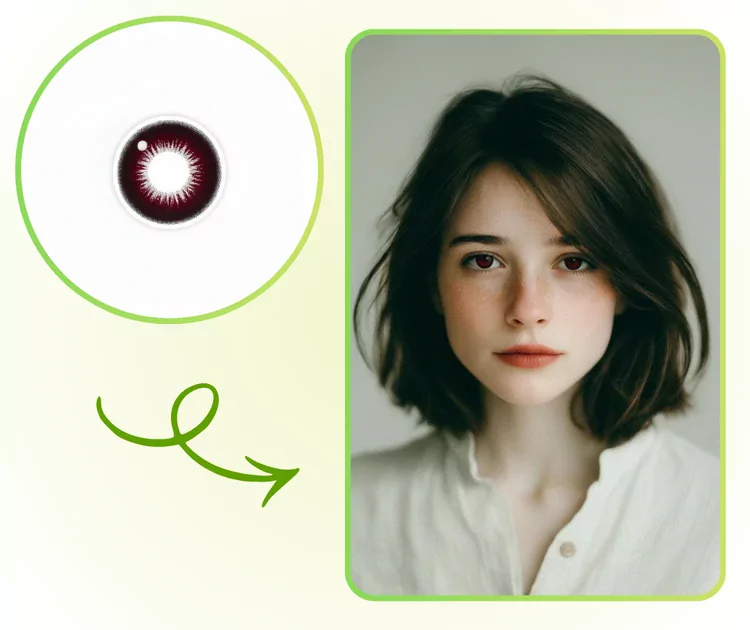
Seven shades, from natural to fantasy
The picker holds seven colors: blue, green, brown, hazel, gray, amber and violet. Each one shows a sample swatch so you know what you are choosing before you spend a credit. Blue, green, brown and hazel cover the everyday range most people search for. Gray and amber suit editorial and moody portraits.
Violet is the one people reach for when the photo is not meant to look ordinary. It works for cosplay, character design, Halloween sets and album art, where the eye should be the first thing you notice. Amber does similar work with a softer, more grounded feel.

Faster than manual retouching, no software to install
You work entirely in the browser workspace on photography-colleges.com — there is no eye color photo editor to install. You upload a JPG, PNG or WEBP file, pick a color, set the quantity and press Generate. Results usually arrive in seconds, sometimes closer to a minute for a heavier image, and you download straight from the workspace.
Sign in with Google and new accounts get free credits, so you can try the AI eye color changer before you decide whether it belongs in your workflow. No credit card is needed to start.
Consent and honest use: edit only photos you own
Edit photos you own or have clear permission to edit. Changing someone else's eye color without their consent is not something this tool is for. Keep results to personal, creative and lawful use, and be straightforward with your audience when an image has been edited.
Do not use edited portraits for passports, visas, driving licenses, ID cards or any other official document. Those images must show you as you actually are. The same applies to any context where an unaltered likeness is required, such as legal filings or identity verification. Uploads are processed to produce your result and may be stored to provide the service; our privacy policy explains how that data is handled.
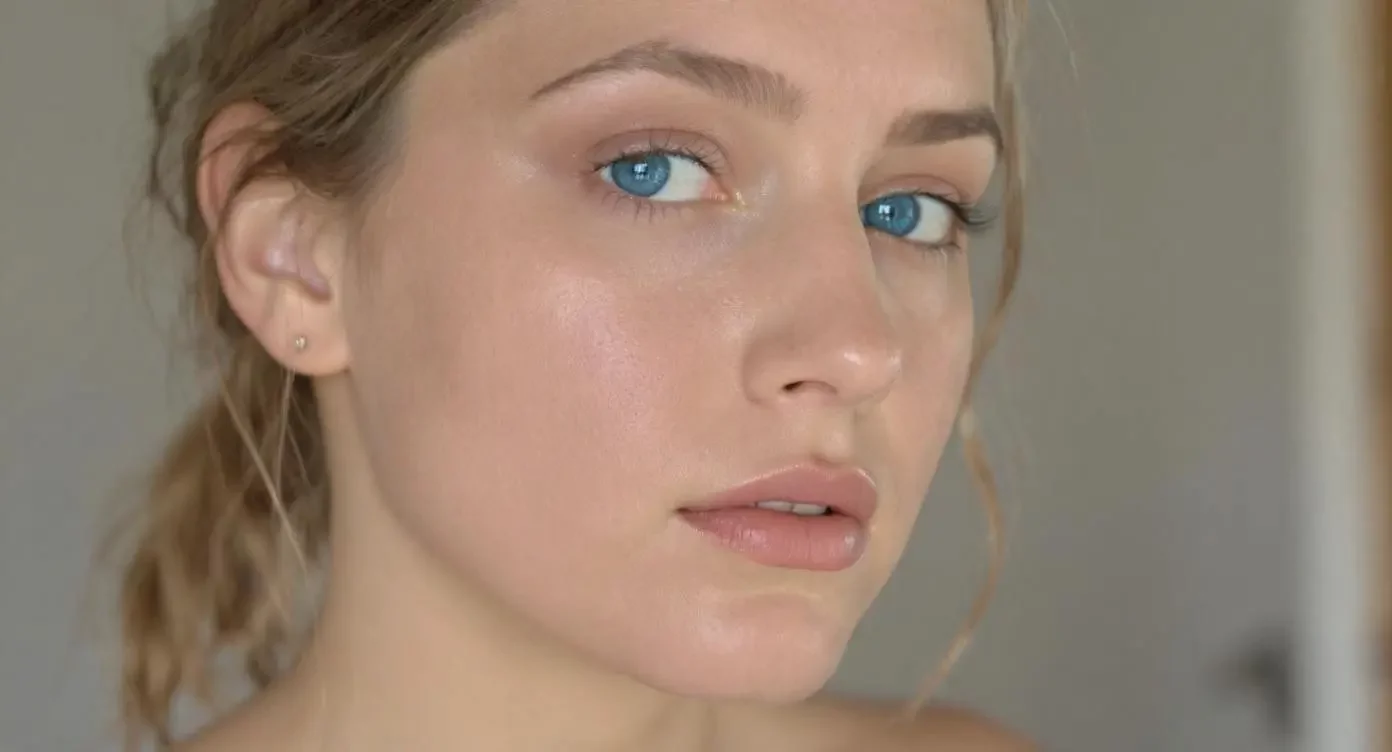
Before & After: AI eye color changer results
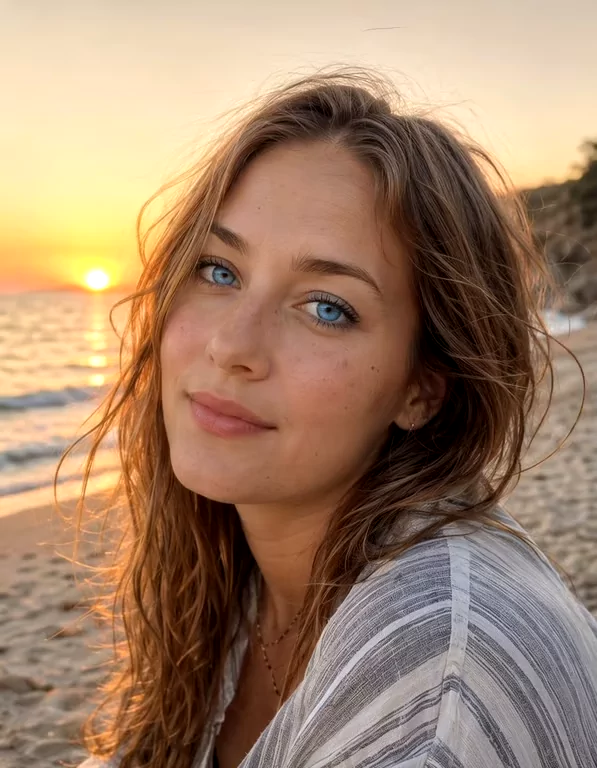
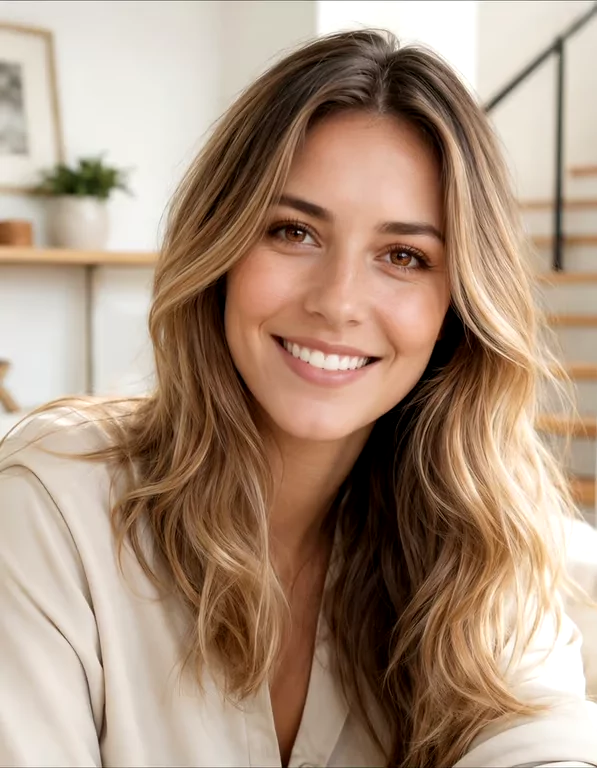
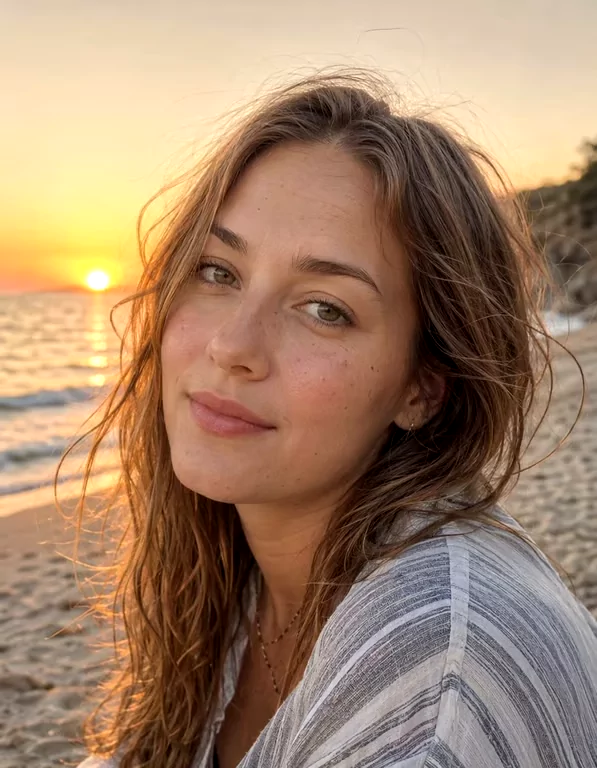

How to use AI Eye Color Changer
- 1Upload your photo
Add a JPG, PNG or WEBP portrait where the eyes are clearly visible. Front-facing close-ups with both eyes open and in focus work best. Blurry, heavily shadowed or very small faces give the model less iris detail to rebuild.
- 2Choose an eye color
Pick blue, green, brown, hazel, gray, amber or violet from the color picker. Each option shows a sample swatch, so you can see the shade before generating. Natural tones suit headshots; violet and amber suit cosplay and editorial looks.
- 3Set quantity and generate
Choose 1 to 4 variations, then press Generate. Each generated image costs 3 credits, so a run of four costs 12. Results appear in seconds to about a minute, with the face, pose, lighting and background unchanged. Compare the versions and download the one you want.
Perfect for
Preview colored contact lenses
Before you buy a lens shade, see it on your own iris instead of a model's. Upload a recent selfie, run blue, green, gray and hazel, and compare them in your own lighting. No shipping, no trial pair, and a straight answer that a product swatch cannot give.
Cosplay and character photos
Character eyes rarely match your own. Violet, amber and green turn a costume shot into the character without contact lenses that irritate your eyes under studio lights. The rest of your makeup, wig and expression stays exactly as photographed.
Profile pictures and social posts
A profile photo often comes down to one detail. Change eye color in your best frame, generate a few variations, and pick the one that reads clearly at a small size. Because everything else is untouched, the new picture still matches the rest of your feed.
Portrait retouching: an eye color editor for client options
Photographers can show a client two or three eye color options from one frame instead of describing them. It also helps when flash or mixed lighting has drained the iris and you want the color to read the way it did on the day. Run 1 to 4 variations from the same frame, drop them into the proof gallery, and let the client point at the one they want.
At a glance
FAQ
How does the AI eye color changer work?
It reads the iris in your photo and rebuilds it in the shade you select. The model uses the existing iris structure, catchlights and lid shadow as a base, so the new color has depth instead of sitting flat on top. Everything outside the iris, including your face, hair, pose, lighting and background, stays exactly as uploaded.
Is the AI eye color changer free to use?
New accounts get free credits, so you can try it without paying. Sign in with Google and no credit card is required to start. Each generated image costs 3 credits, and one run can return up to four variations. When your free credits run out, you can top up to keep generating.
How do I change eye color in a photo?
Upload a clear portrait, choose one of the seven colors, set how many variations you want, and press Generate. The whole flow runs in the browser workspace, with no software to install and no editing skills required. Results appear in seconds to about a minute, and you download them straight from the page.
Can it turn dark brown eyes blue?
Yes. Dark irises are the most common case, and the model handles them by rebuilding the iris rather than tinting it. A brown eye moved to blue or gray keeps a gradient from pupil to outer edge, plus the original highlights. The lighter the shade, the more the source photo's sharpness and lighting matter.
Will the result look natural?
In a clear, well-lit photo, yes. The iris keeps texture, a soft gradient and its reflections, so the eye reads as photographed rather than painted. Results depend on your input: soft focus, heavy shadow across the eyes, sunglasses reflections or a very small face give the model less detail to work with.
What file formats can I upload?
JPG, PNG and WEBP photos are accepted. Use the highest quality version you have rather than a screenshot or a heavily compressed social media re-upload, since compression artifacts around the eye reduce the detail available. A close-up where both eyes are visible and in focus gives the best result.
Is it legal and safe to change someone's eye color in a photo?
Edit only photos you own or have clear permission to edit, and never alter someone else's likeness without their consent. Results are for personal, creative and lawful use. Do not use edited portraits for passports, visas, licenses or any other identity document, and be honest with your audience when an image has been edited.
What happens to the photos I upload?
Uploads are processed to generate your result and may be stored to provide the service, as our privacy policy describes. Read that policy before uploading anything sensitive. Your original file is never changed by the edit: the tool returns new images, and the photo on your device stays as it was.