 Photography Colleges
AI Hair Color Changer
Best Examples
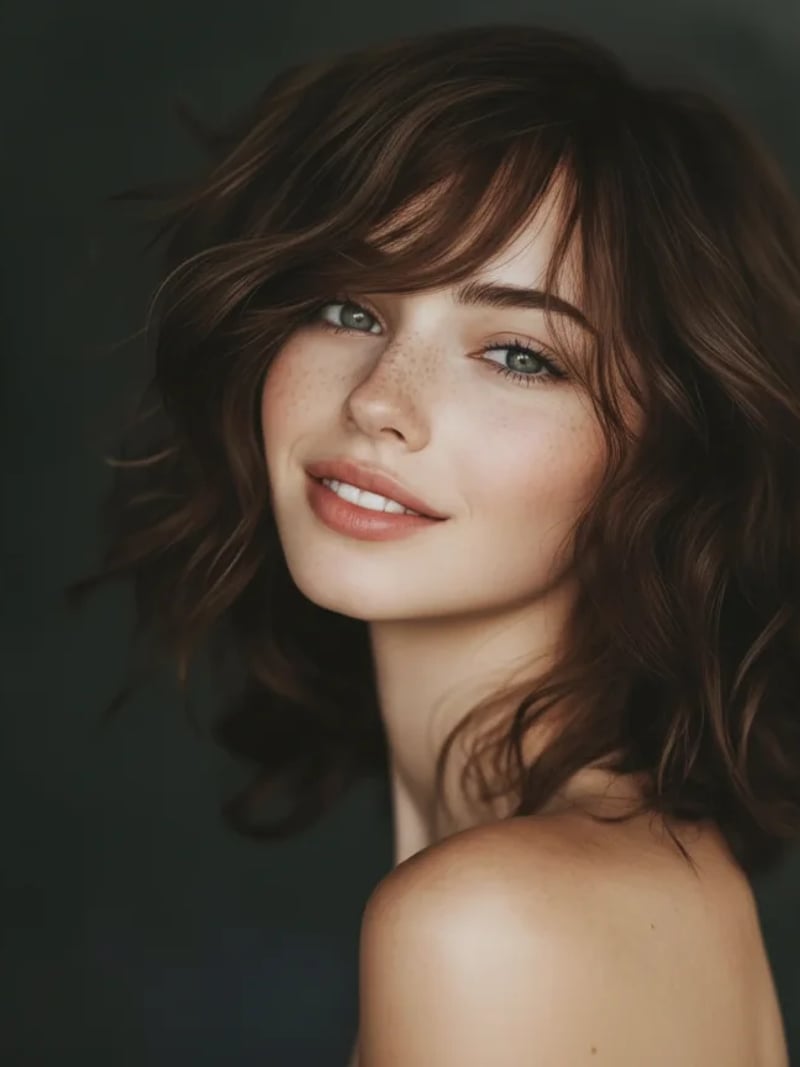
AI Hair Color Changer: Try 10 Shades on Your Own Photo
Use the AI hair color changer to preview blonde, red, silver or pink hair on your own photo in seconds. Your face and background stay untouched. Free to try.
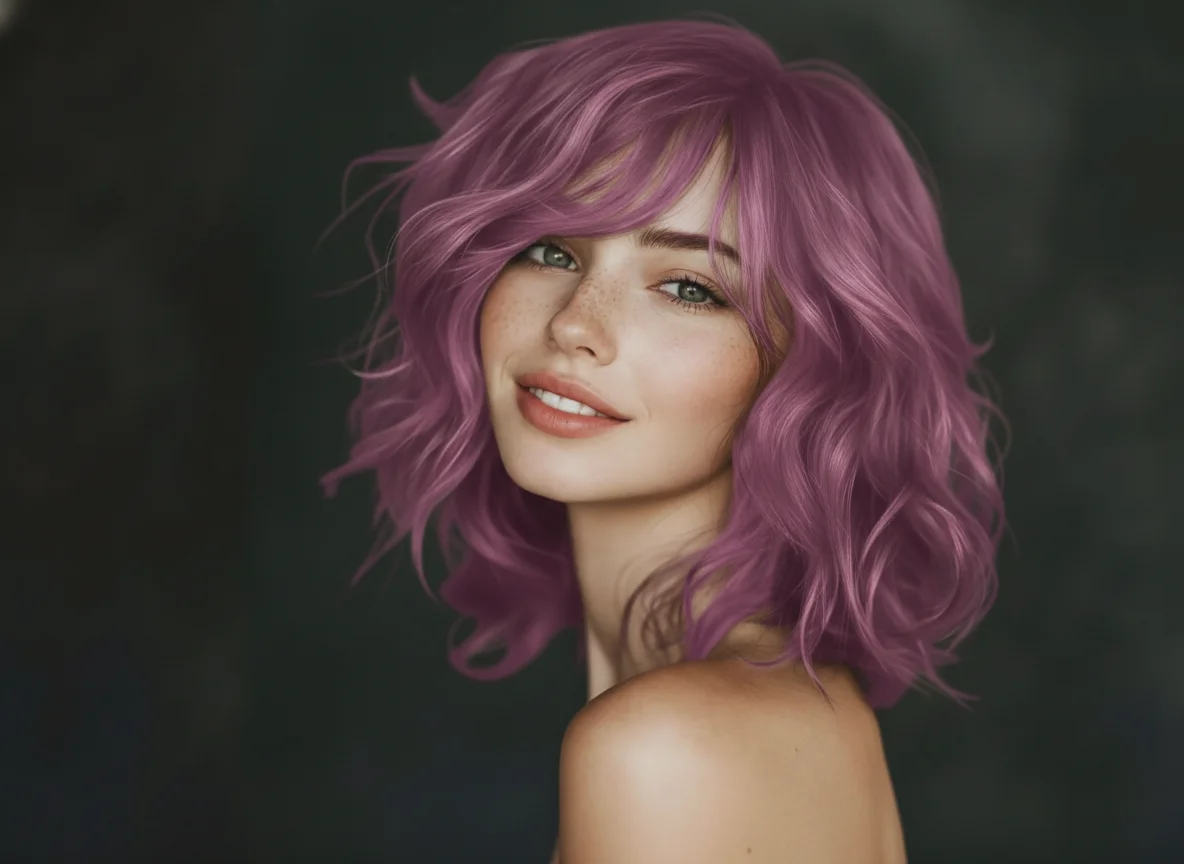
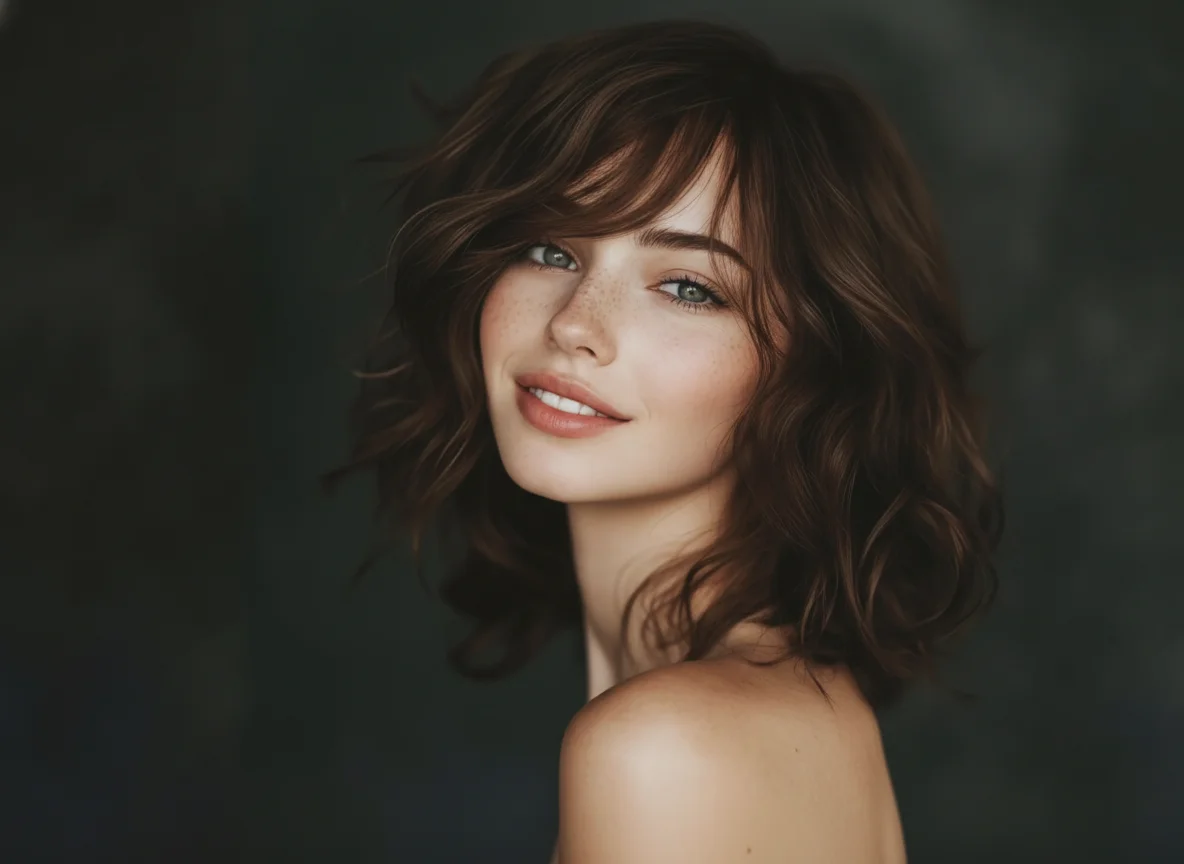
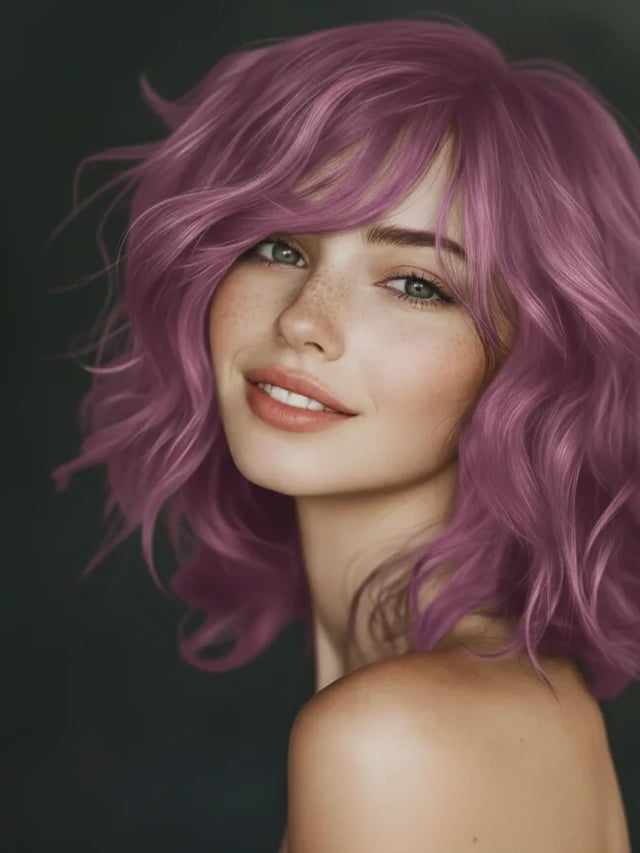
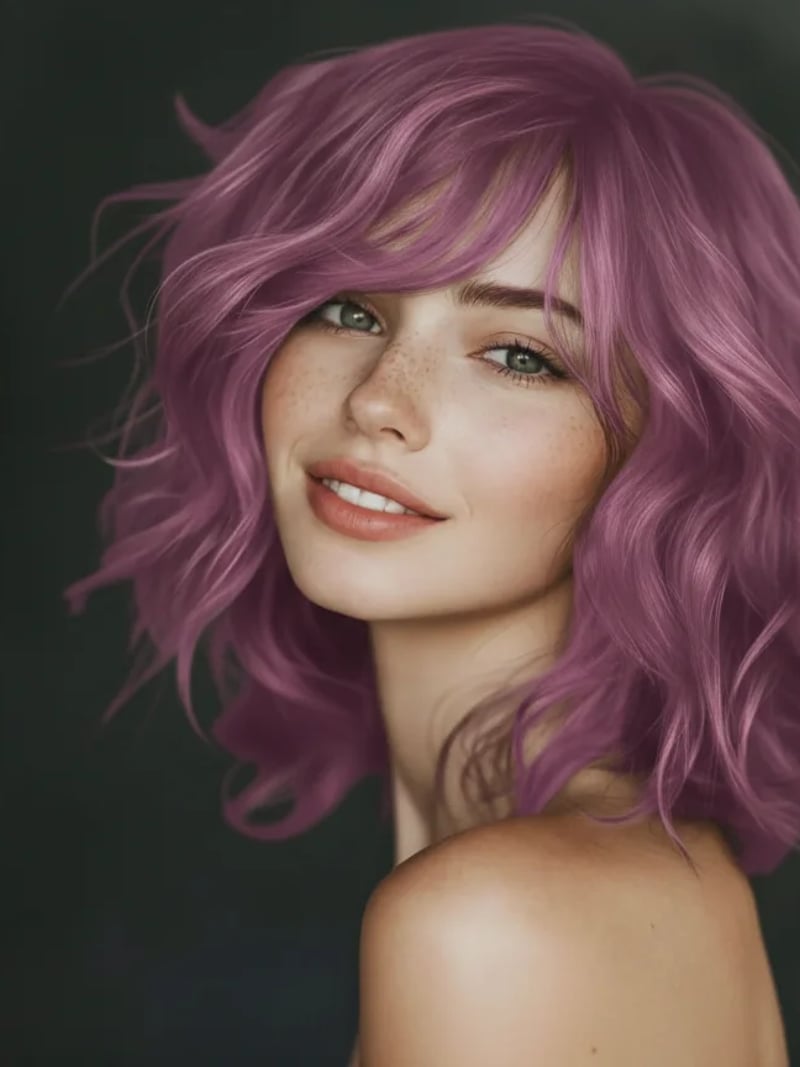
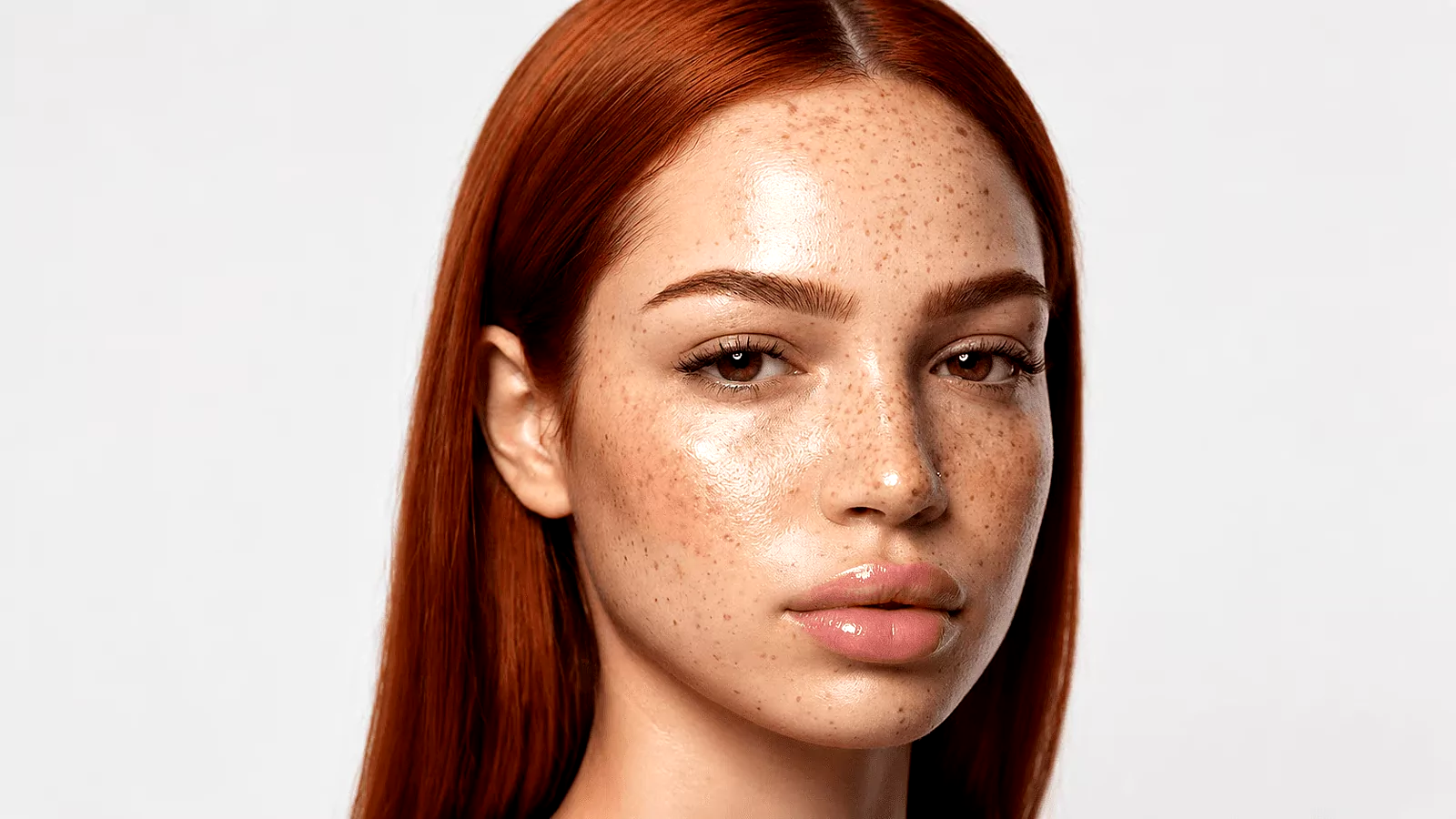
The AI hair color changer lets you see a new shade on your own photo before you open a bottle of dye. Upload one clear portrait, pick a color from ten presets, and the model recolors only the hair. Your face, expression, haircut, clothing and background stay exactly as they were. Results usually arrive in seconds, and you can download whichever version you like best.
It suits anyone weighing a change. Think of someone booking a salon appointment, a stylist sketching options for a client, or a cosplayer matching a character. Creators use it for a color test without buying a wig. No editing skills are needed. Changing hair color online takes three steps here, and you can run the same photo through several shades to compare them side by side.
Manual retouching is the slow alternative. Masking hair by hand means tracing loose strands, repainting shadows, and rebuilding highlights so the new tone agrees with the light in the room. The AI handles that mapping for you and keeps texture and shine intact instead of dropping flat paint over the head. An evening of layer work becomes one generation.
How the AI hair color changer reads your photo
The tool works from a single image. It separates hair from skin, clothing and background, then follows the direction of each strand before applying the new tone. Roots, mid-lengths and ends receive different amounts of light, which is why the result reads as dyed hair rather than a colored sticker. Nothing outside the hair region is repainted.
That is also why photo quality matters more than photo size. A front-facing or three-quarter shot with the hairline visible gives the model the most information to work with. Soft, even light beats harsh backlight. If part of the hair is hidden by a hat or a hood, expect the covered area to stay as it is in the original.
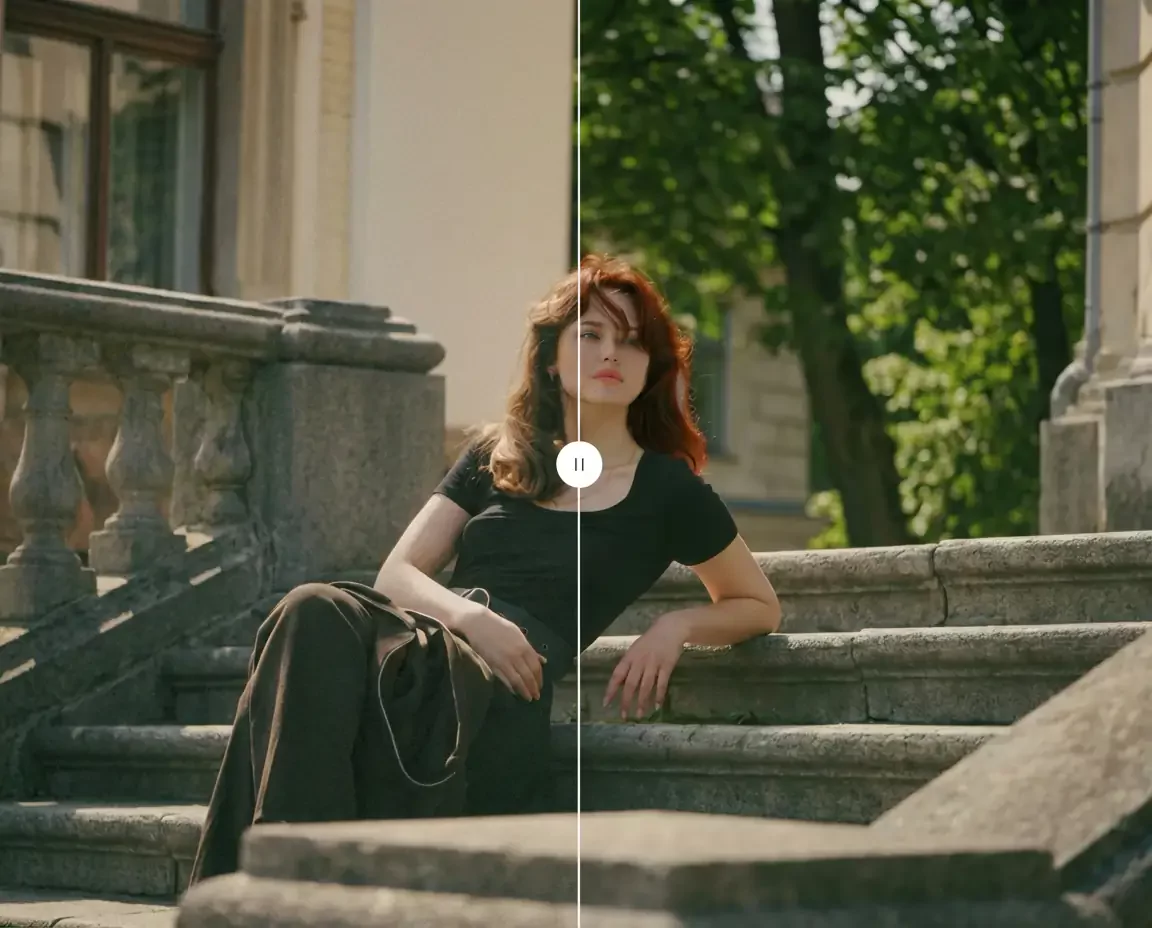
Change hair color in a photo without losing texture or lighting
A social filter usually lays one flat tone across the top of the head, and the color bleeds onto the forehead and ears. This photo hair color changer takes the opposite approach. Highlights, shadows and the shine along the crown are recalculated for the shade you picked, so curls still look like curls and frizz still reads as frizz.
Identity preservation is the other half of the promise. Skin tone, makeup, eye color, pose and the room behind you are left untouched, which keeps the picture recognizable as you. Compare the original against the result before you download. If a shade lands warmer or cooler than you hoped, generate again with a neighboring color.
Ten shades to change hair color online free, from everyday tones to fashion colors
The color menu covers black, brown, blonde, red, pink, green, gray, silver, blue and purple. Each option shows a swatch, so you are choosing a visible tone instead of guessing at a name. Natural families sit next to bold ones, which makes it easy to test a safe brown and a bright purple on the same portrait in one sitting, and free starting credits let you begin without a credit card.
Silver and gray are worth a look if you are curious about growing out your color. Pink, blue, green and purple answer a different question, since those shades normally require bleaching first. Here you can judge whether the look flatters your skin tone before anyone reaches for developer. Set quantity to four and pick your favorite frame.
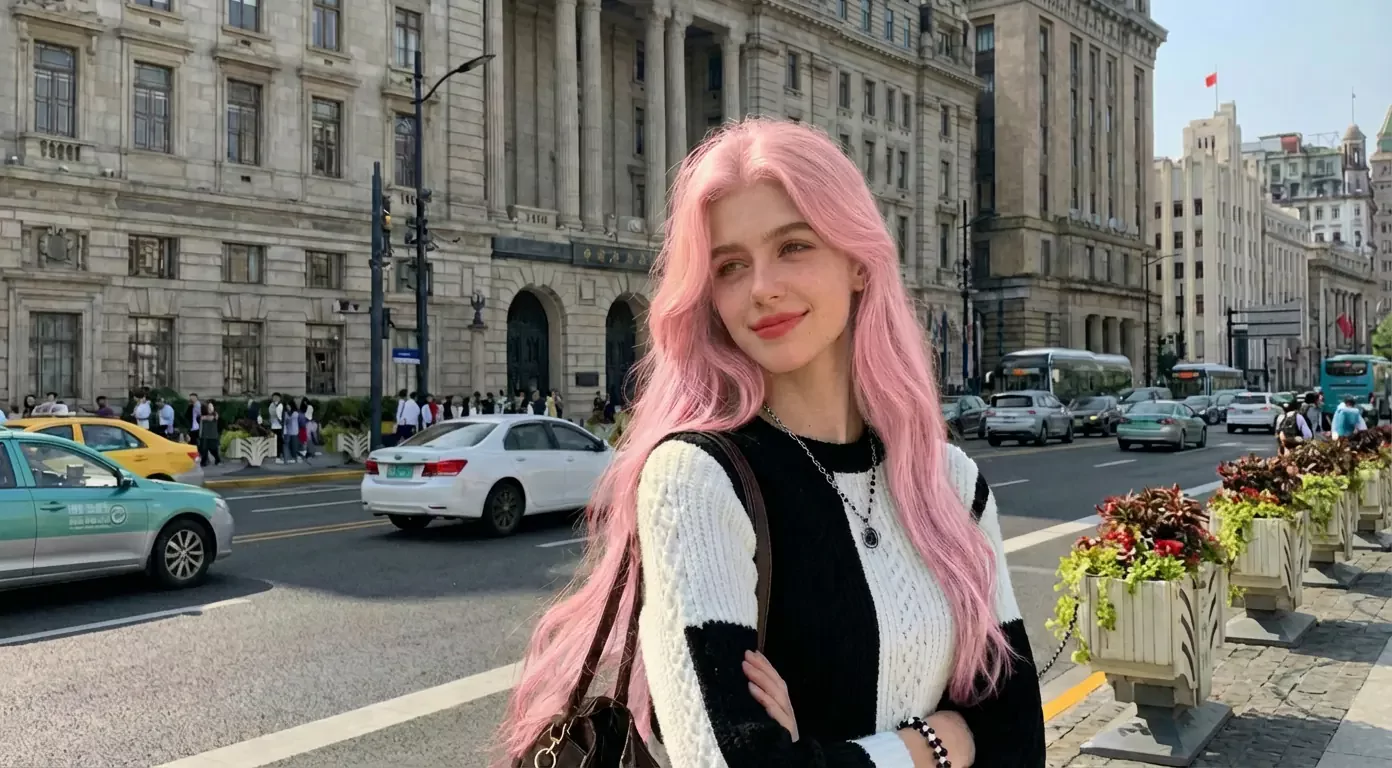
Privacy, consent and fair use
Sign in with Google and new accounts receive free credits, so you can try this hair color editor without a credit card. Each generation costs three credits, and the workspace shows the cost before you run it. Uploads are processed and may be stored so the service can provide your results, which is described in the privacy policy.
Use the results for personal, creative and lawful purposes. Upload photos of yourself, or of someone who has agreed to the edit, and do not publish an altered portrait of another person without their permission. Every output is an AI simulation. Real dye behaves differently depending on your starting level, porosity and the salon formula, so treat a preview as a reference.
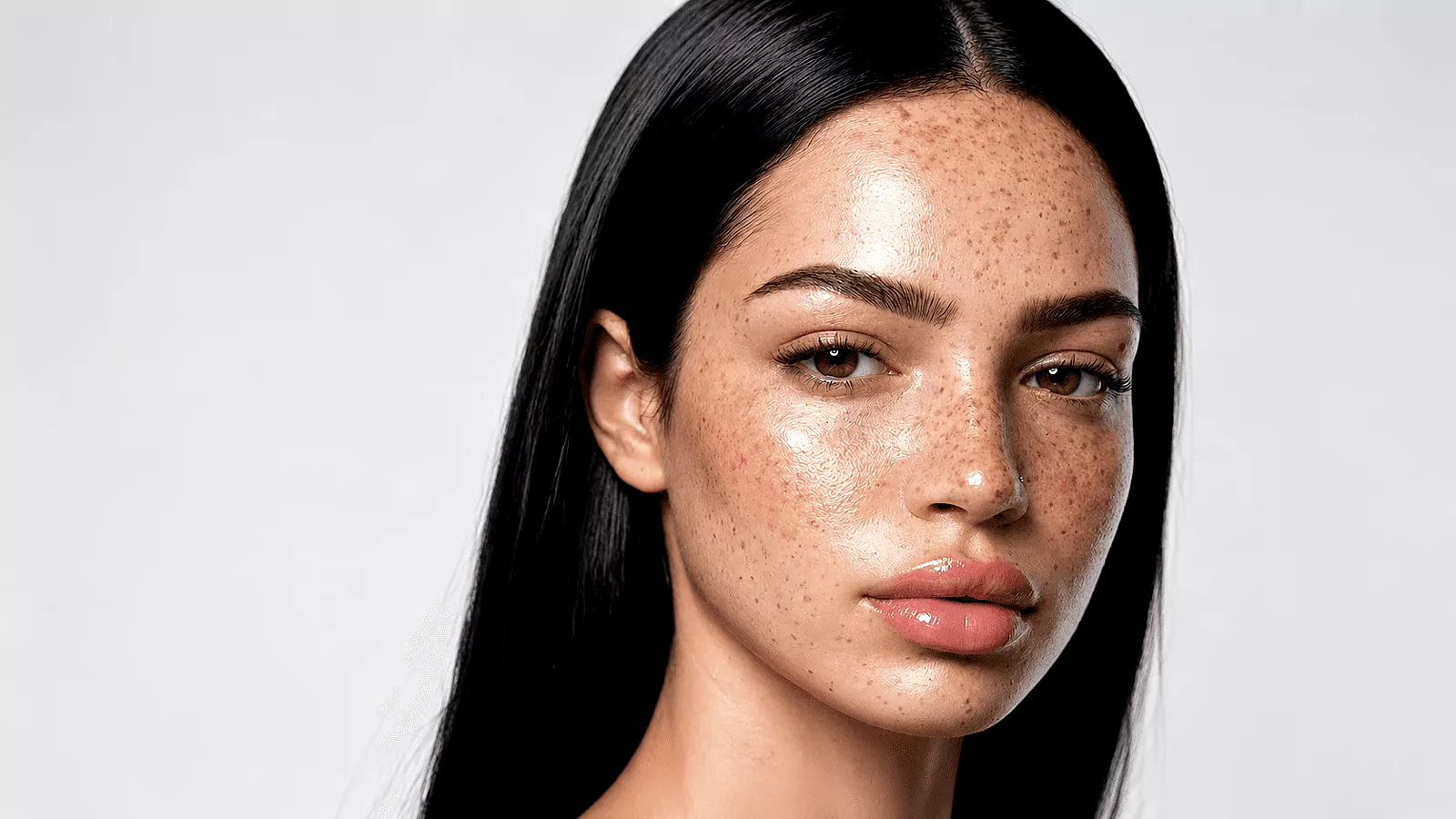
Before & After: AI hair color changer results
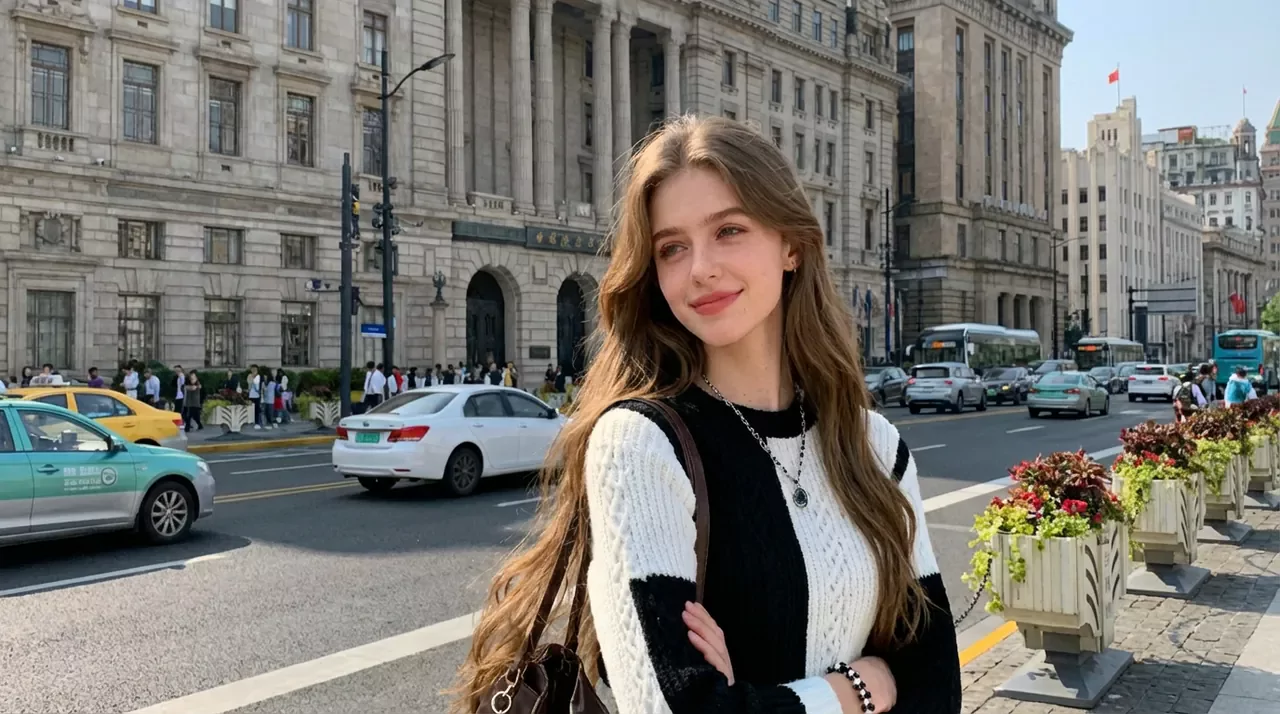
How to use AI Hair Color Changer
- 1Upload your photo
Add one JPG, PNG or WEBP portrait in the Photo field. One photo per generation is all the tool needs.
- 2Choose a hair color
Open Choose Hair Color and select one of ten swatches: black, brown, blonde, red, pink, green, gray, silver, blue or purple. The swatch previews the tone you are about to apply to the photo.
- 3Set quantity and generate
Pick a quantity between one and four, then click Generate. Each generation costs three credits. Results appear in seconds to about a minute, and you can download any of them or try a different shade.
Perfect for
Virtual hair color try-on before your salon appointment
Book with a picture instead of a description. Try two or three shades on a recent selfie, download the closest match, and show it to your stylist at the consultation. It removes the gap between the color you asked for and the color you meant, and it costs nothing but credits to test.
A hair color changer for stylists and salons
Run a client photo through several tones during the consultation and let them see the options on their own face. Comparing a warm brown against an ash blonde takes seconds, so the conversation moves from adjectives to images. Always ask the client before you upload or share their photo.
Hair color changer for dark hair, cosplay and character work
Match a character's hair color without buying a wig or committing to dye. Blue, green, purple and pink read clearly even on dark hair, which makes the tool useful for planning a build or testing a reference shot. Generate four variations and pick the one closest to the source art.
A photo hair color changer for creators and social posts
Build a color transformation post from one portrait. Change the shade, keep the pose and background identical, and the before and after pair lines up perfectly. It is a fast way to produce a week of visual content without a photoshoot or a styling budget.
Hair color editor for beauty and e-commerce visuals
Hair color brands and retailers can preview how a shade family reads on a model shot before commissioning new photography. Because the pose and lighting stay fixed, a set of results makes a consistent grid for a landing page mockup. Confirm model releases cover edited versions of the image.
Tool at a glance
FAQ
What is an AI hair color changer?
An AI hair color changer is a photo tool that repaints the hair in your picture in a shade you select. It keeps the haircut, face, pose, clothing and background as they were, so only the color changes. You upload one photo, pick a swatch, and the model returns a finished image you can download.
How do I change hair color in a photo?
Upload one portrait, open Choose Hair Color and pick a swatch, set a quantity between one and four, then click Generate. The AI recolors only the hair and returns the result in seconds to about a minute, ready to download.
Is the AI hair color changer free to use?
New accounts get free credits, so you can try the tool without a credit card. Sign in with Google to claim them. Each generation costs three credits, so you can try several shades on your free credits before deciding.
Which hair colors can I choose?
Ten shades are available: black, brown, blonde, red, pink, green, gray, silver, blue and purple. Each one is shown as a swatch in the Choose Hair Color menu. The list mixes everyday tones with fashion colors, so you can test a natural brown and a bright blue on the same portrait.
Will the new hair color look natural?
In most photos, yes. The color follows the direction of the strands and reuses the lighting already in your picture, so highlights and shadows fall where they did before. Curls, waves and flyaways keep their texture. Clear, evenly lit portraits give the most convincing results, while heavy backlight or motion blur can soften the edges.
Does it work on dark, curly or gray hair?
Yes. Dark and coily hair both recolor, and pastel or fashion shades on black hair usually read as a bolder change than on light hair. Gray and silver work in either direction, whether you are previewing a grow-out or covering it. Make sure the hair is fully visible and not hidden by a hat.
How long does a result take?
Most images finish in seconds, and busy moments can stretch to about a minute. Each run returns one to four variations, depending on the Quantity control, and you can download the ones you want. If a shade is not quite right, generate again with a neighboring color rather than editing the result by hand.
What photo formats can I upload?
JPG, PNG and WEBP photos are accepted. One portrait per generation is all the tool needs. Choose a shot where the face and hair are both clearly visible, since crops that cut off the ends give the model less to work with. Screenshots and heavily filtered photos tend to produce weaker results.
What happens to the photo I upload?
Your upload is sent to our servers to generate the result, and it may be processed and stored so we can provide the service. The privacy policy explains how that data is handled and what your options are. Avoid uploading sensitive images, identity documents, or photos you are not comfortable having processed.
Is it safe and legal to change someone's hair color in a photo?
Editing your own photo is fine, and results are meant for personal, creative and lawful use. Get the person's agreement before you upload their picture, and label the output as an AI preview when you share it. Never use the tool to impersonate, mislead or harass anyone.